Students
The Students module manages a student's entire lifecycle: from pre-registration to exit, including their full record and class transfers. Accessible from Student Management → Students.
Student list
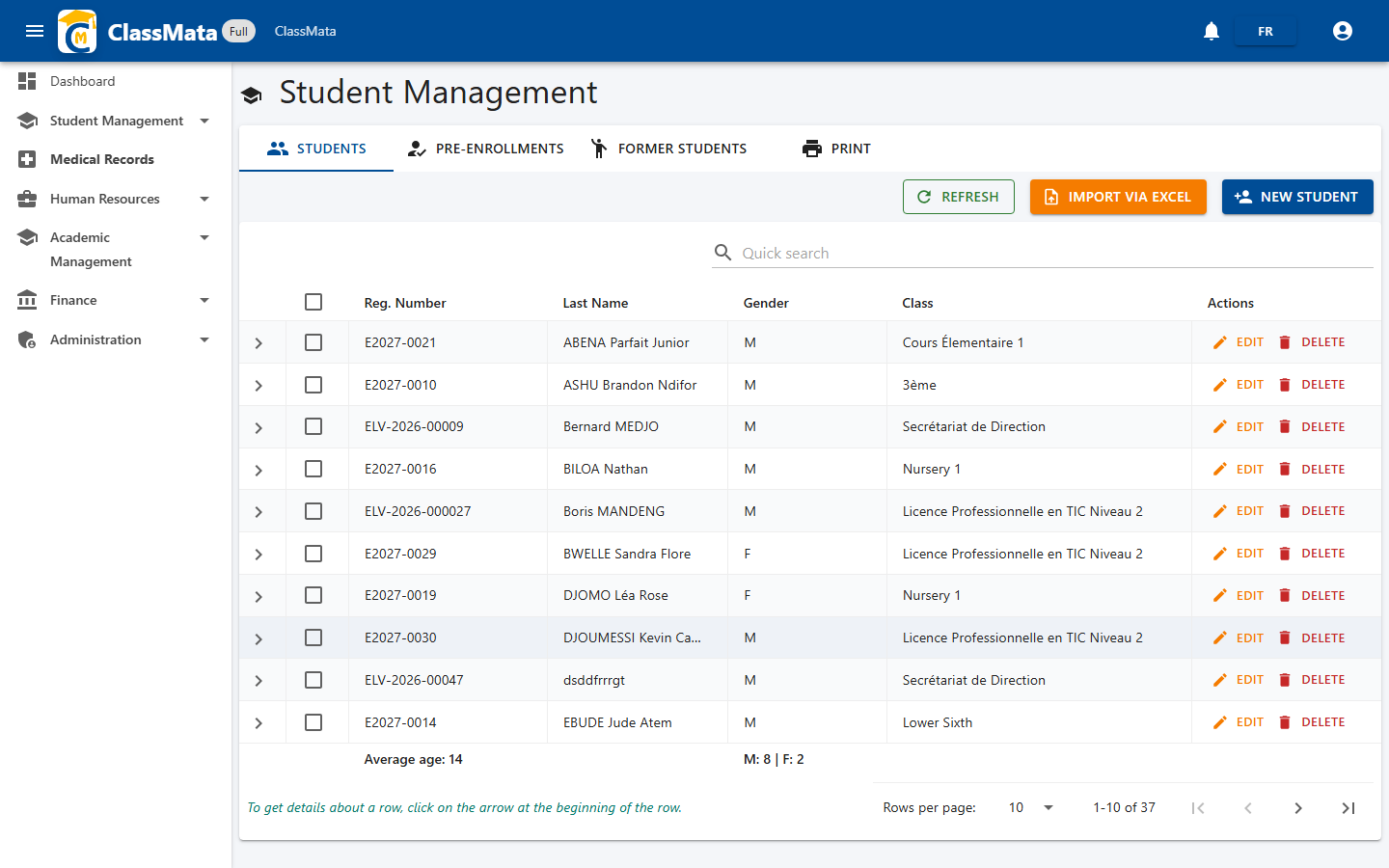
The table lists every active student with their ID number, Name, Gender and Class. The search bar filters instantly across these columns.
Three top-level actions are available:
- Refresh the list
- Import via Excel for bulk enrollment
- Create a New student one at a time
Each row offers Edit and Delete. The table footer shows the average age and M/F split for the current page.
Student record (detail)
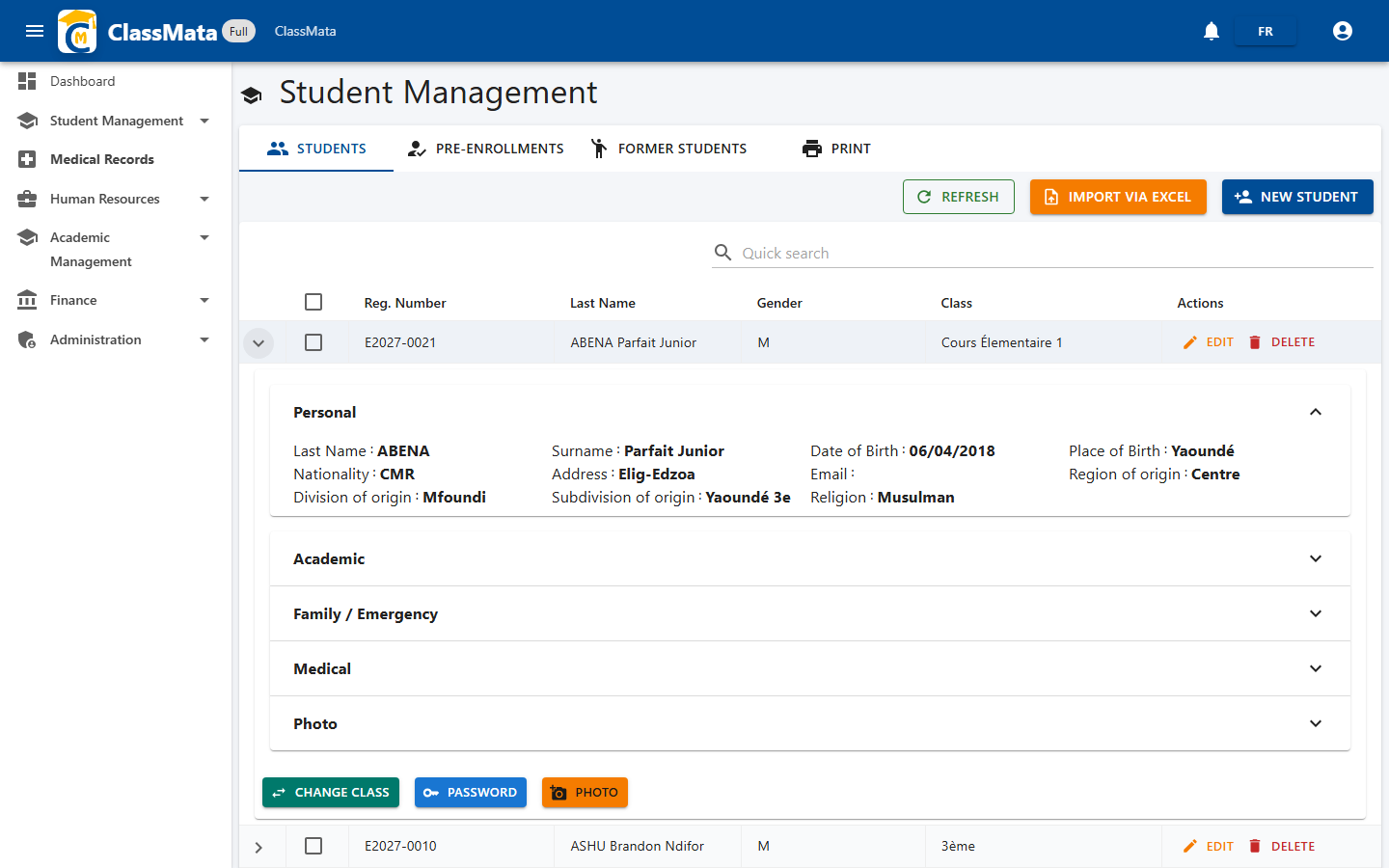
Clicking the arrow at the start of a row expands the full student record without leaving the list. It's made of five collapsible sections:
- Personal — civil status, birth, background, religion
- Academic
- Family / Emergency
- Medical
- Photo
Three quick actions at the bottom of the record: Change class (transfer), Password (resets the student's/parent's access) and Photo (updates the portrait).
Creating a new student
The New student button opens a five-tab form, one per information category.
Personal
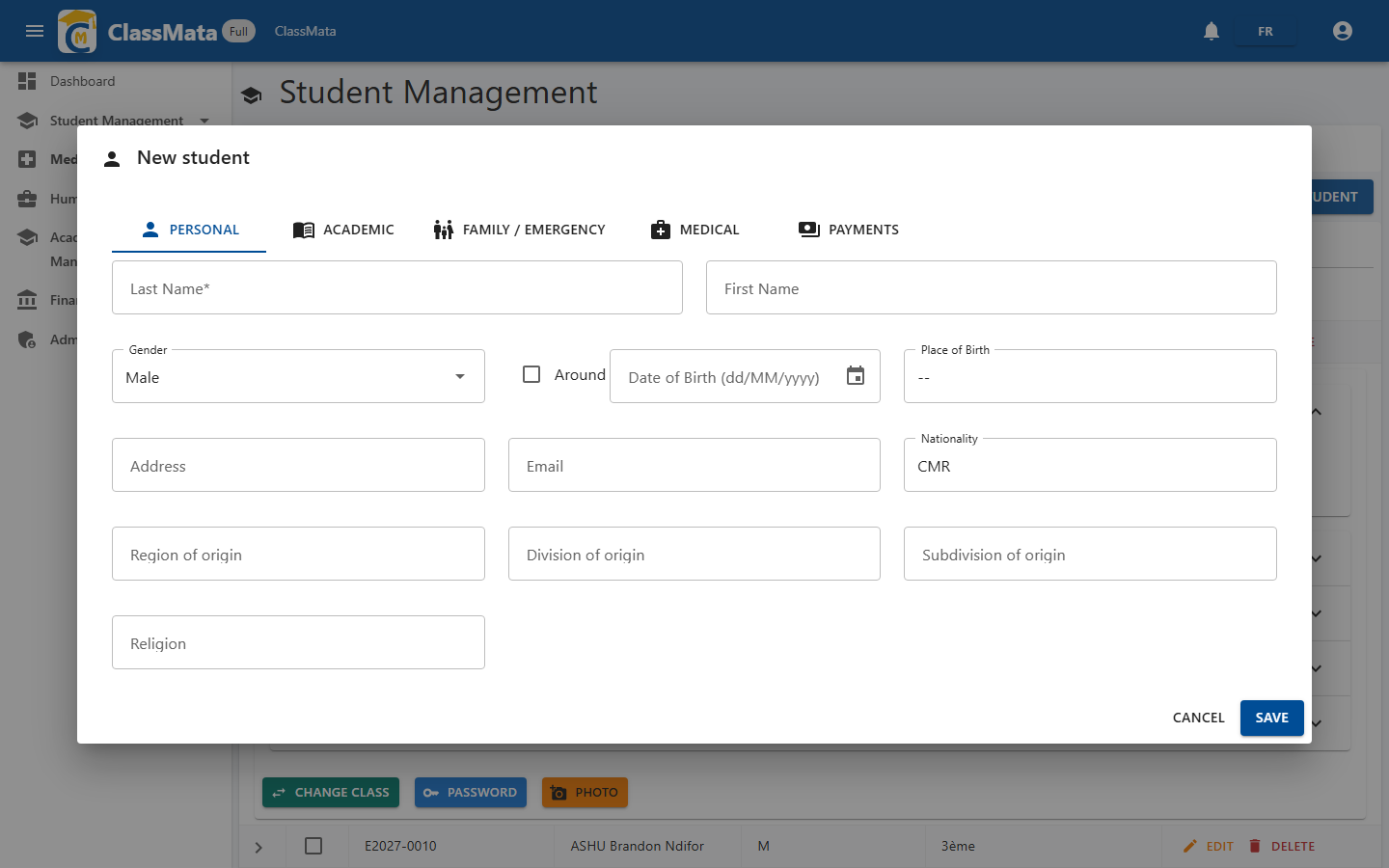
Captures the student's last name, first name, gender, date and place of birth, address, email, nationality and geographic background. Only Last name is strictly required to move forward — other fields can be filled in later from the detail record.
Academic
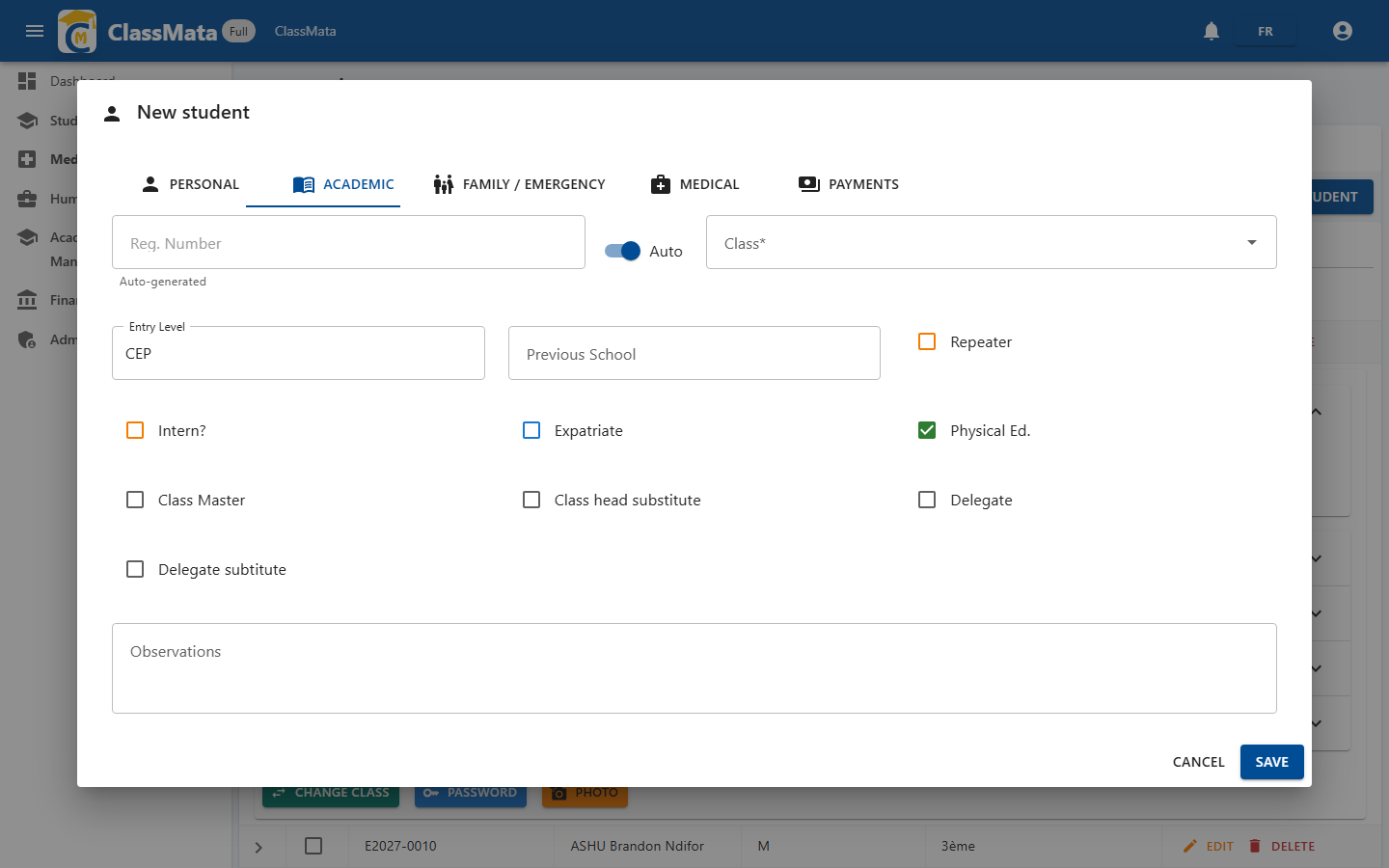
Attaches the student to a class and sets their academic status. The ID number can be auto-generated (Auto toggle) or entered manually; the Class is required. The Repeating, Boarder, Expatriate and PE checkboxes qualify the academic profile. The Class president, Vice president, Delegate and Deputy delegate roles are checked directly here.
Family / Emergency
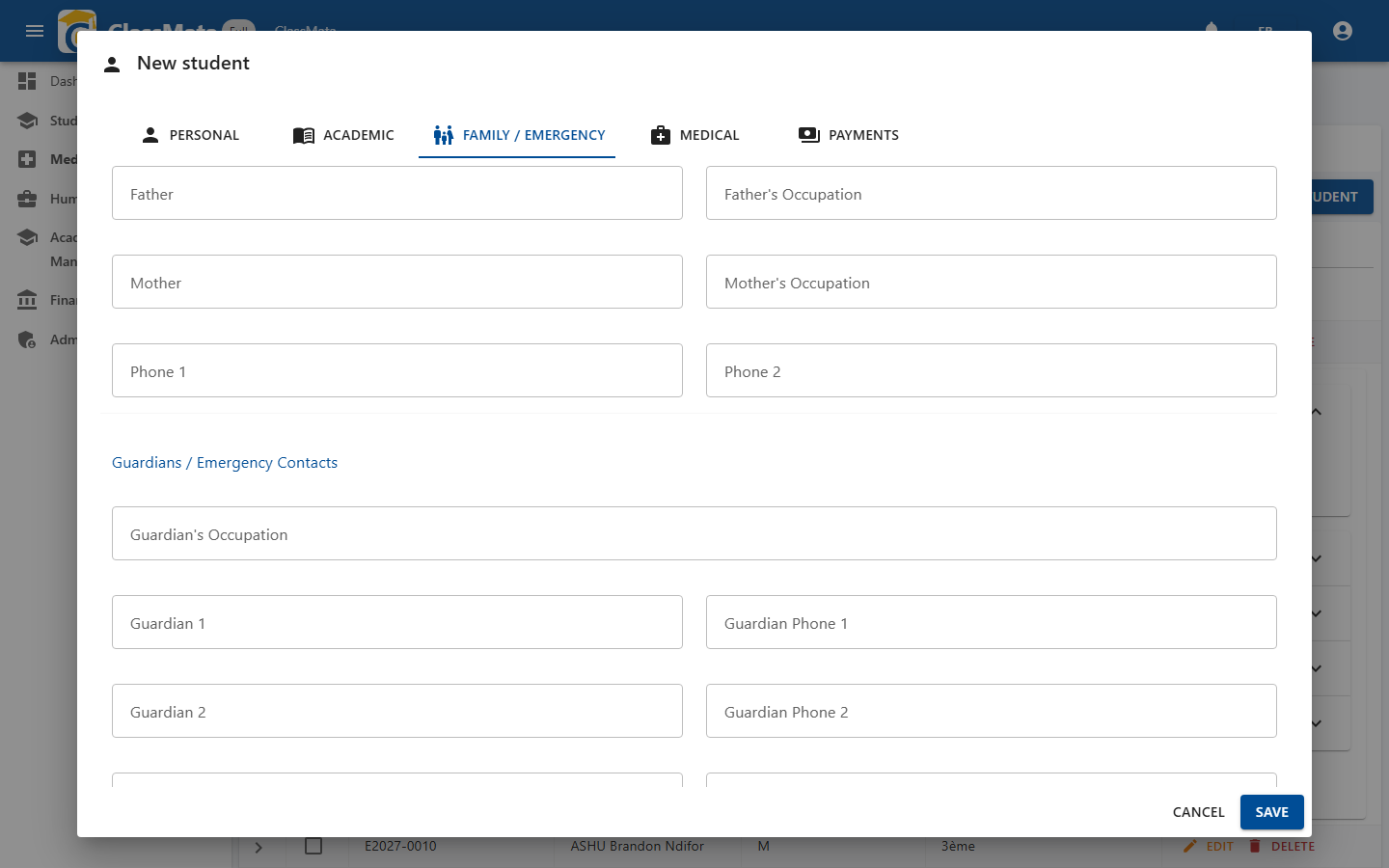
Parent contact details (occupations, two phone numbers). The Guardians / Emergency contacts section allows declaring up to two additional guardians — useful for boarding students or shared custody.
Medical
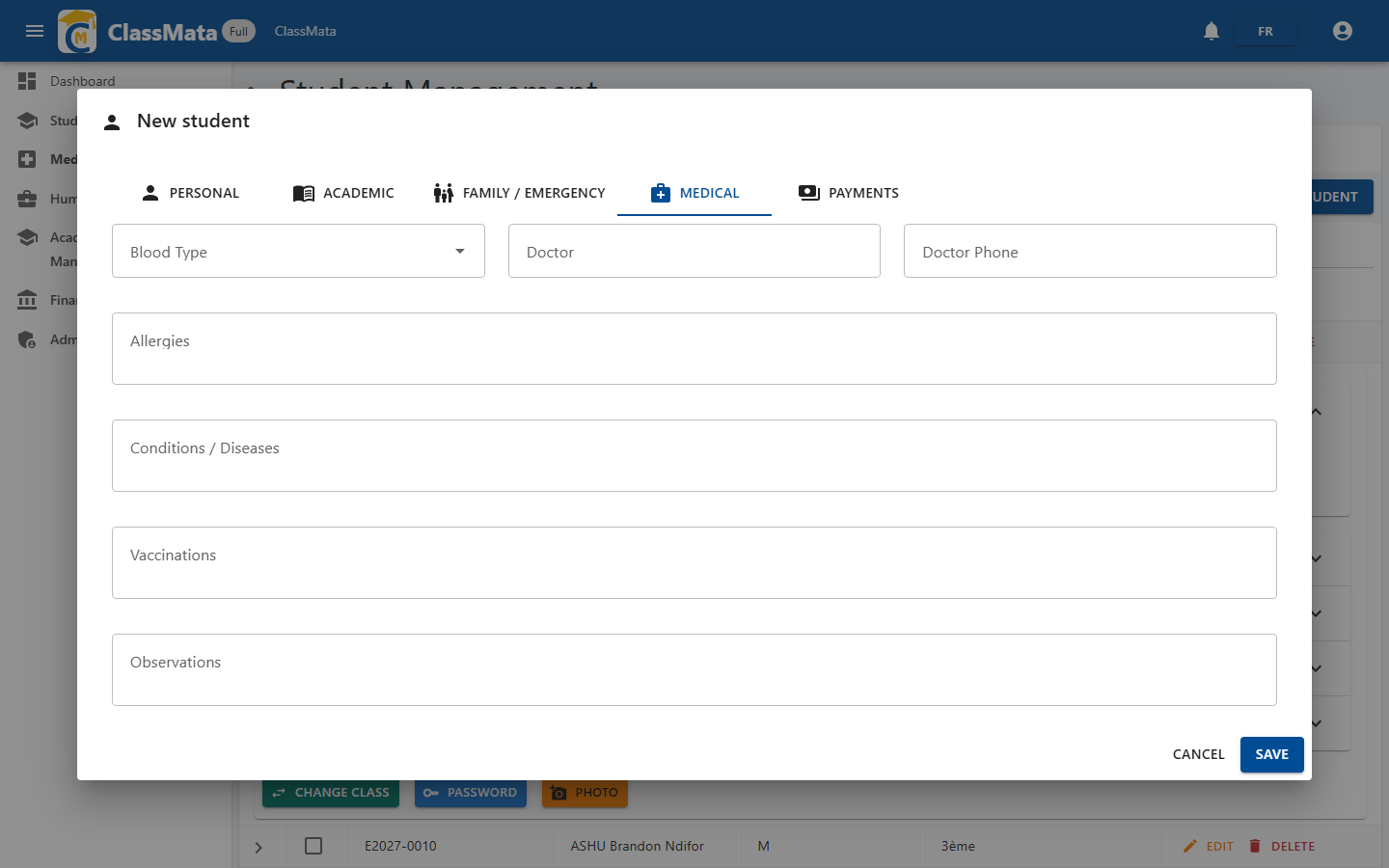
A minimal health record for emergencies: blood type, treating physician and their phone number, allergies, conditions, vaccinations and free-text notes. This information also surfaces in the Medical Records module in the sidebar.
Payments
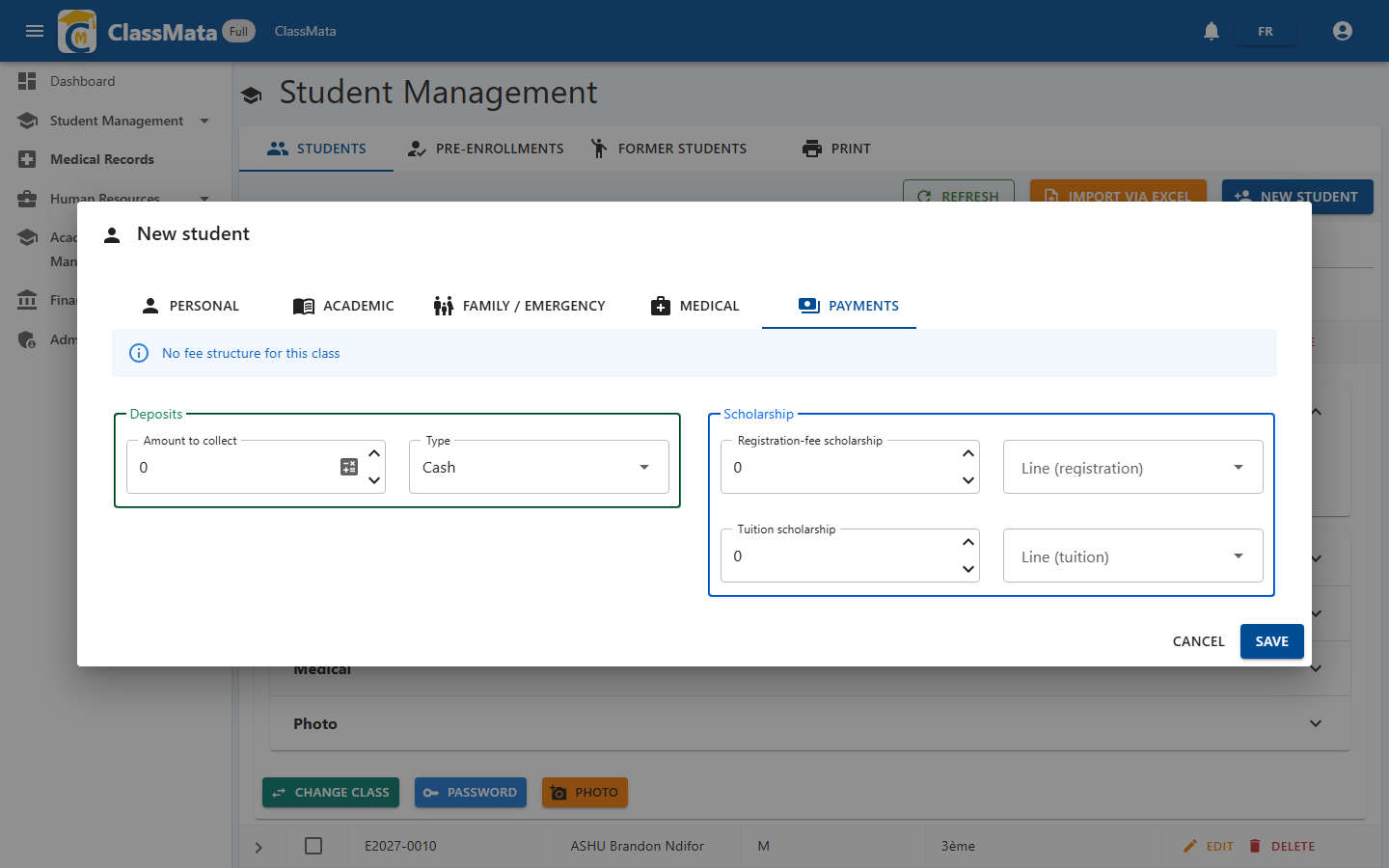
Collects the first payment and applies a scholarship right at creation time. The Payments column collects an initial amount (cash, cheque…). The Scholarship column applies a flat or percentage discount on registration fees and/or tuition. A warning appears if no fee structure has been configured yet for the selected class.
Editing a student
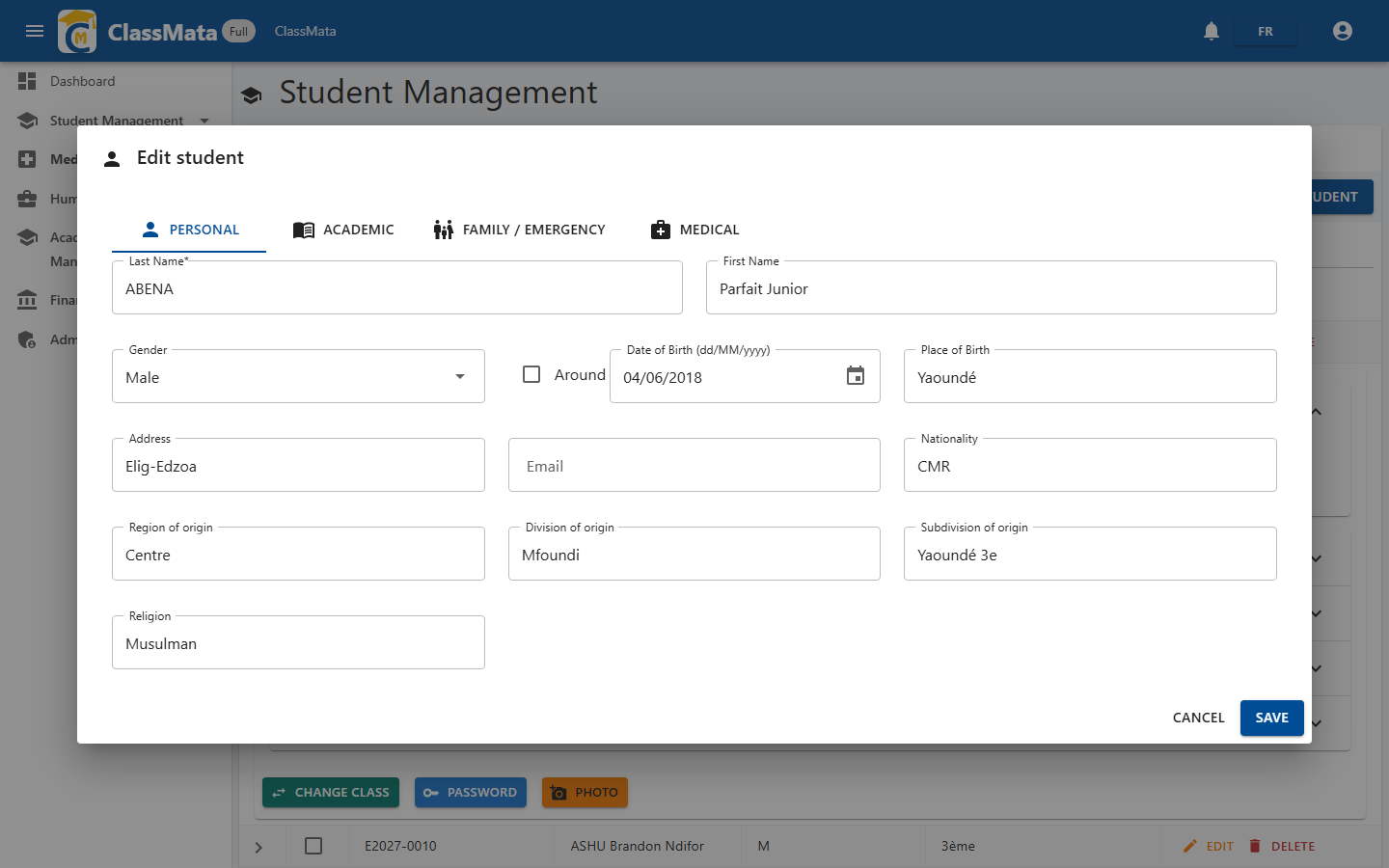
The Edit button on a row reopens the same form, pre-filled. Same structure as the creation form (Personal / Academic / Family / Medical tabs), except the Payments tab, which only appears at creation time. Any change is confirmed with Save or discarded with Cancel.
Import via Excel
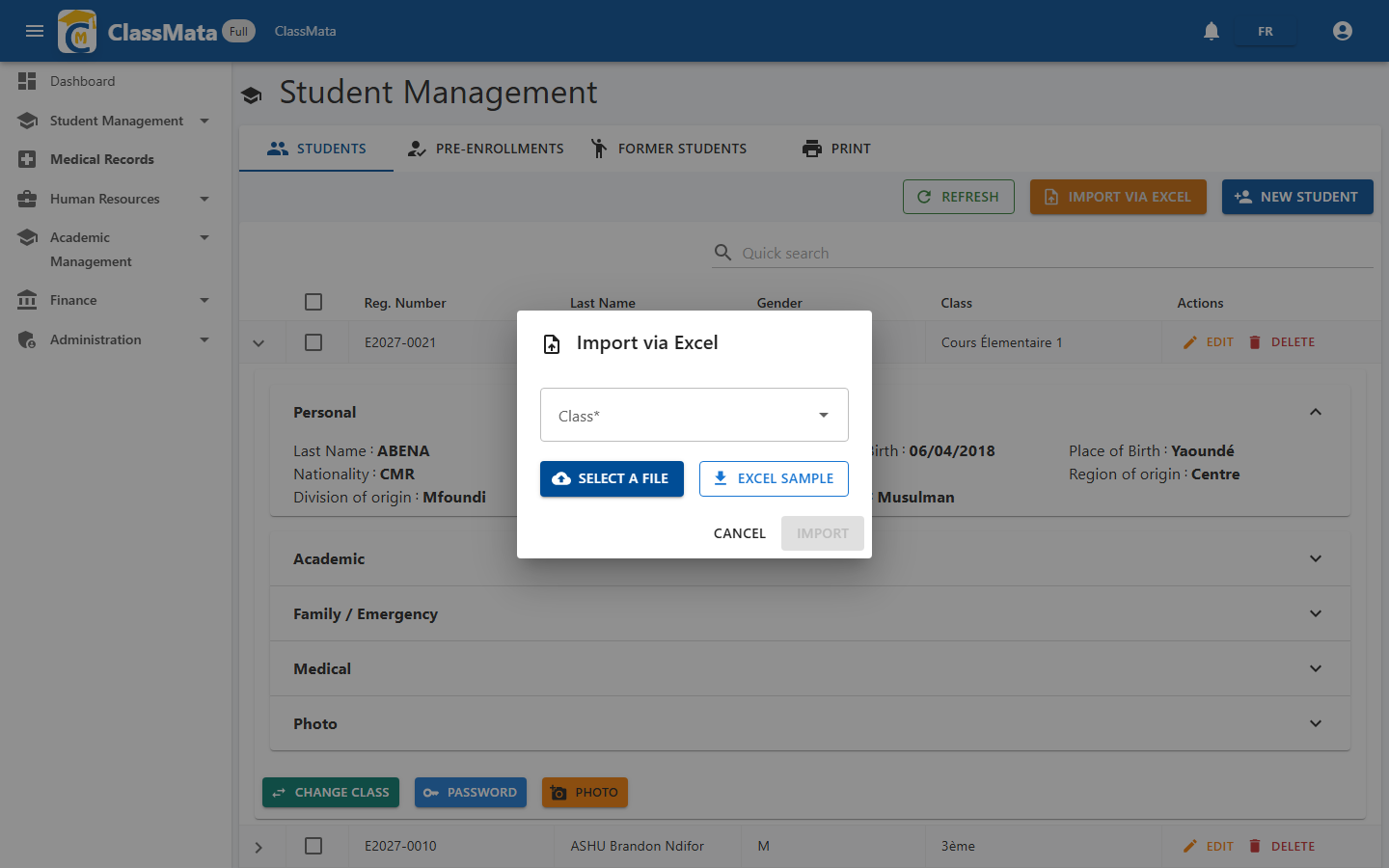
Enrolls an entire class in one operation instead of record by record. First pick the target Class, then download the Excel template if you need a blank one to fill offline. Once the file is filled in, Select a file loads it; the Import button only activates once a valid class and file are chosen.
Pre-registrations
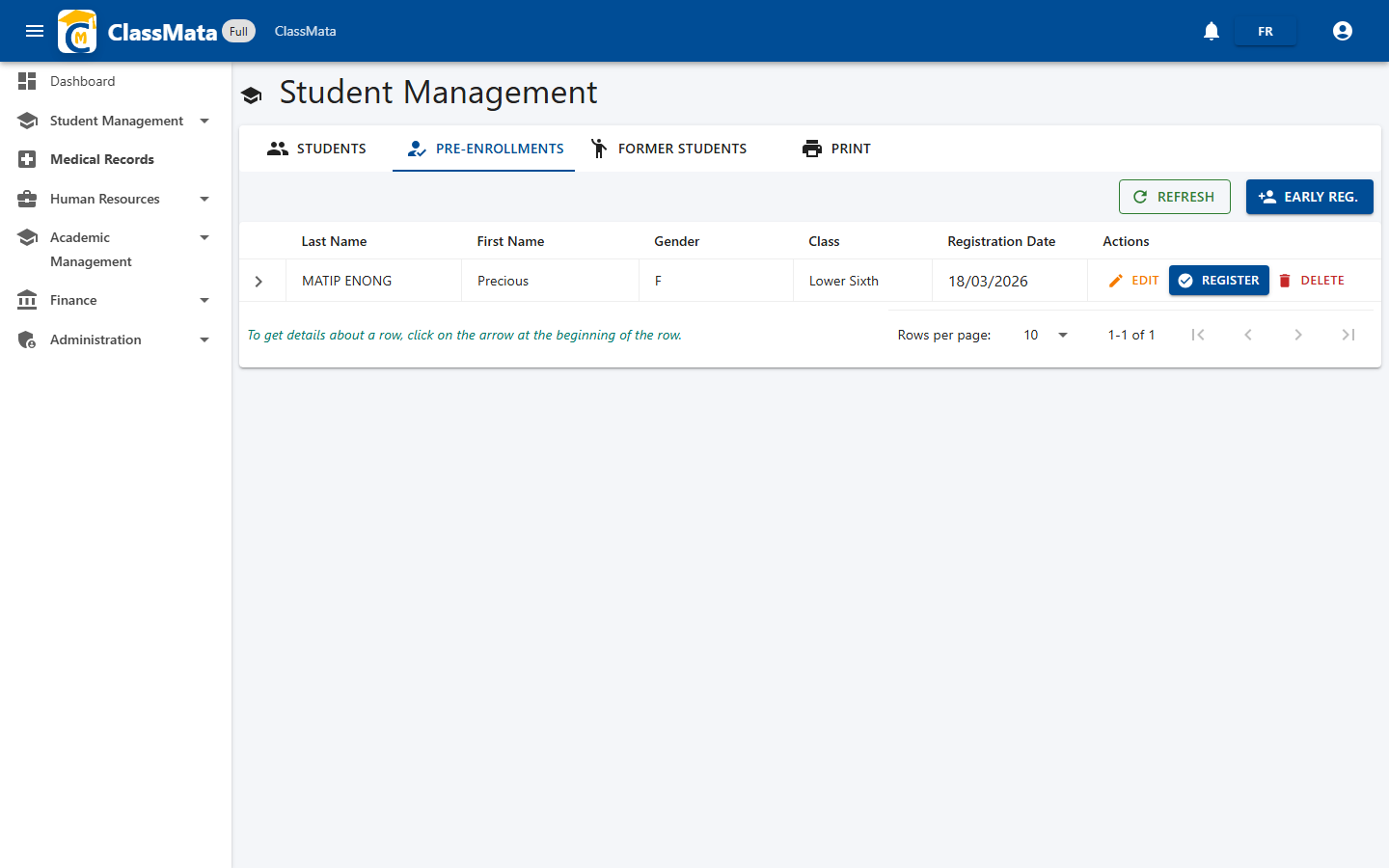
A waiting queue of candidates not yet full students. Each application shows last name, first name, gender, target class and application date. The Enroll button converts a pre-registration into an active student (it then moves into the main list); Edit and Delete remain available while the application is pending.
Former students
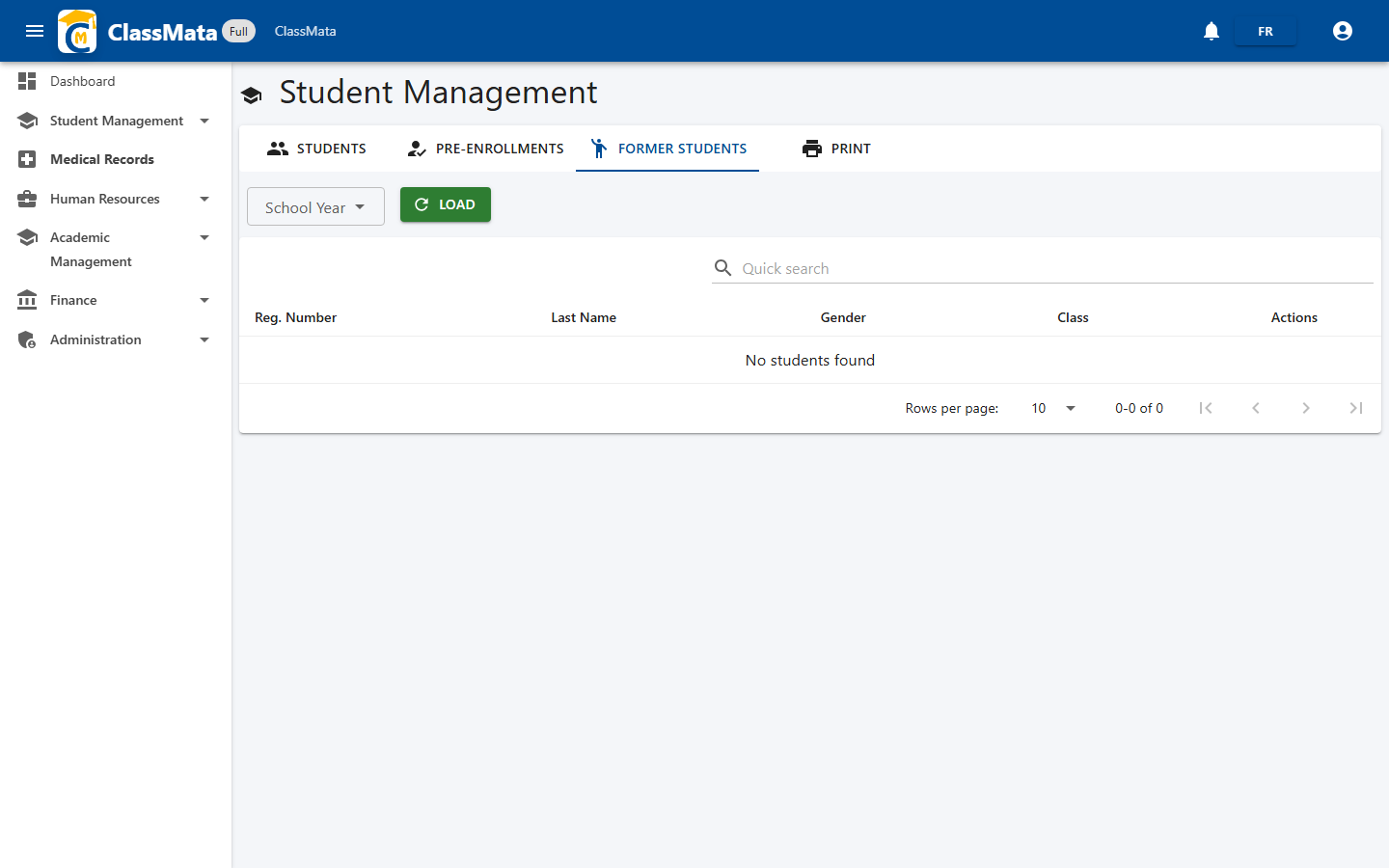
A browsable archive of students who left, organized by school year. Pick a School year and click Load to show students who left the school that year (transfer, graduation, expulsion…).
Printing
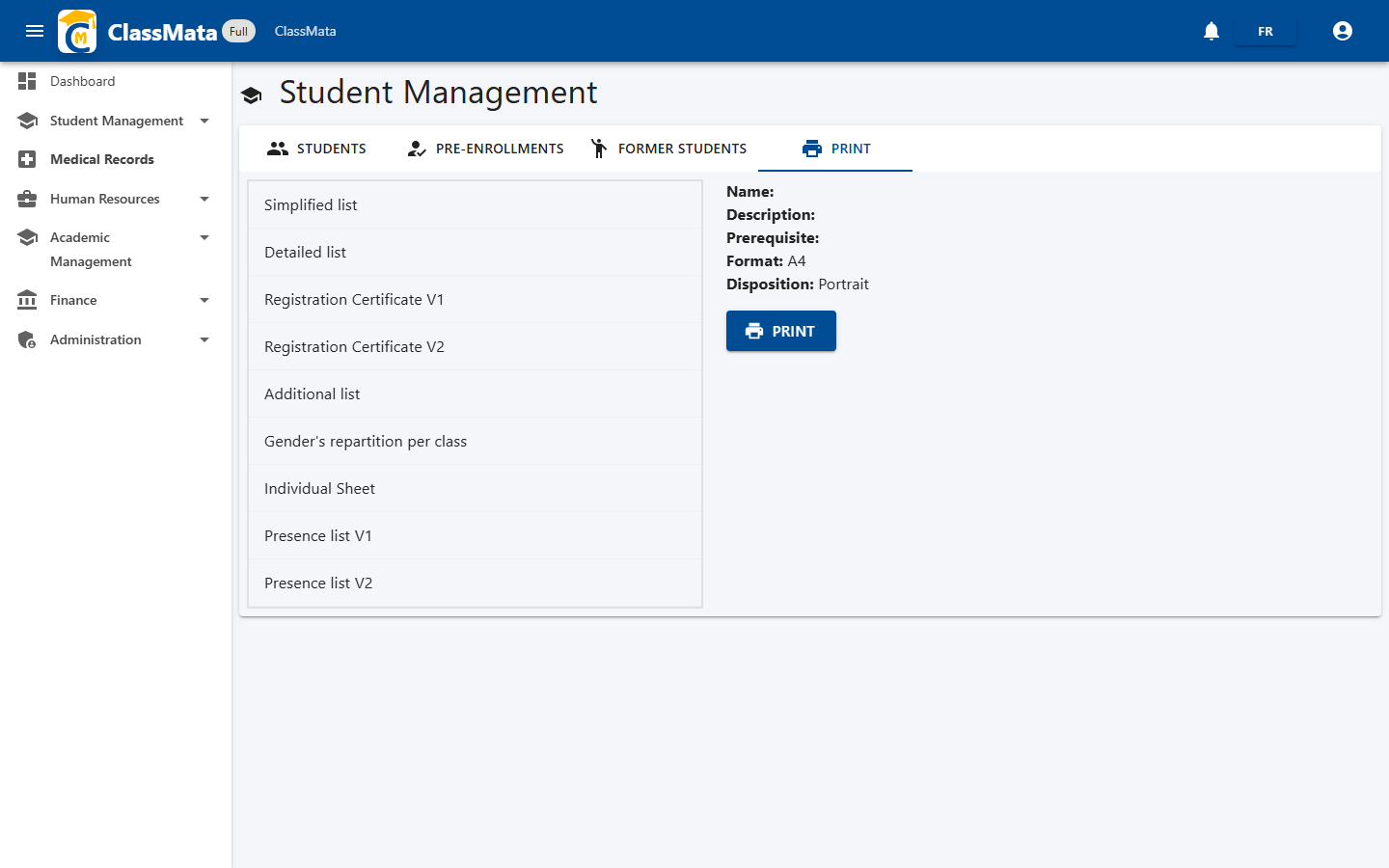
A library of printable documents generated from student data. Nine templates are available: simple/detailed lists, two versions of the Certificate of Enrollment, waiting list, gender statistics by class, individual record sheet, and two versions of the attendance list. Selecting a template shows its metadata (description, prerequisites, format, layout) before clicking Print.